
Download Lab Tick – Free Mac Keyboard Brightness Control Tool
Overview
Lab Tick is a lightweight, free utility designed specifically for macOS users who want precise control over the back‑lit keyboard brightness on their Apple laptops. First released in 2006, Lab Tick has amassed over 3,300 downloads and continues to attract users in the United States, France, and China who need a simple yet powerful way to dim or brighten their keys without diving into system preferences. The current version, 0.9.4, was last updated on October 12, 2009, and it runs on Mac OS X as well as earlier versions of the operating system.
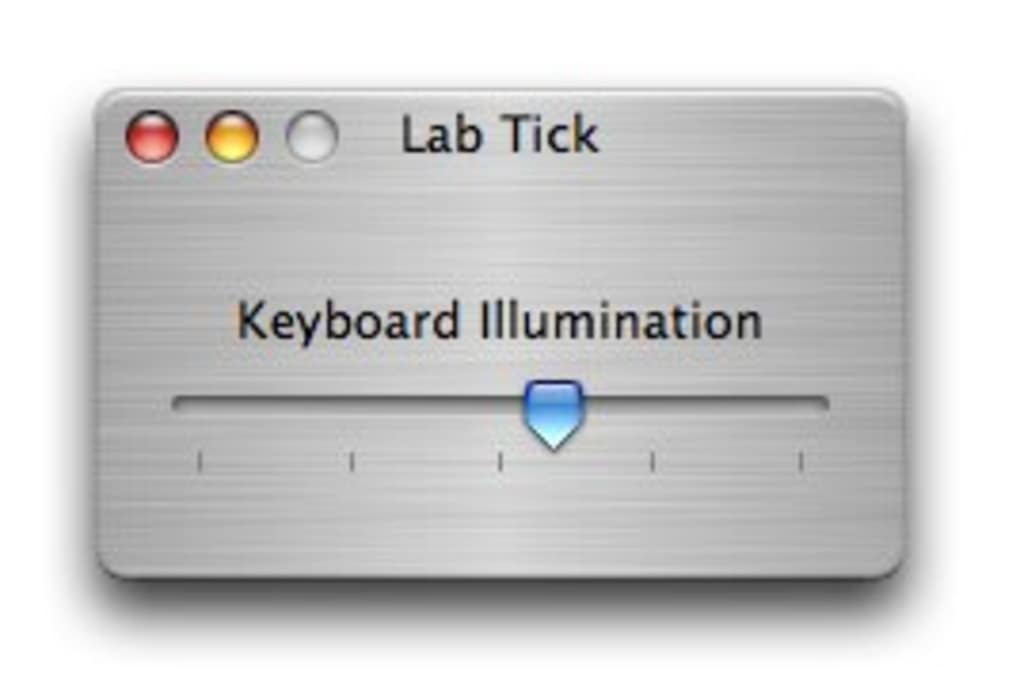
Because the program resides in the Utilities → Mouse & Keyboard subcategory, it integrates seamlessly with the macOS menu bar, providing instant access to brightness sliders, preset levels, and automatic dimming options. Lab Tick’s tiny footprint—just a few megabytes—means it won’t crowd your hard drive, and its English‑only interface keeps the experience straightforward. Whether you’re working late in a dark café, editing photos under bright studio lights, or simply trying to conserve battery life, Lab Tick gives you the flexibility to fine‑tune keyboard illumination with a single click.
Its open‑source roots and regular bug‑fix releases (including recent fixes for menu‑bar icons and preference panes on Mac OS X 10.4) make it a reliable, secure choice for anyone looking to personalize their Mac’s typing experience.
Key Features
- Real‑time brightness adjustment directly from the menu bar.
- Customizable preset levels for quick switching between dim, medium, and bright.
- Automatic dimming based on inactivity or ambient light (when supported).
- Support for all Apple back‑lit keyboards, including older MacBook models.
- Minimal system resource usage – less than 5 MB of disk space.
- Free of charge with regular updates to address macOS compatibility.
- English‑only interface focused on simplicity and speed.
- Compatibility with macOS versions from 10.3 (Panther) up to 10.6 (Snow Leopard).
Each of these features has been crafted to solve a specific pain point for Mac users. The menu‑bar slider eliminates the need to open System Preferences, saving time and clicks. Preset levels let you define your favorite brightness settings—ideal for developers who switch between dark‑mode coding sessions and bright‑screen presentations.
Automatic dimming can extend battery life by turning the back‑light off after a period of inactivity, a function that older macOS versions lacked natively. Because Lab Tick is written in native Objective‑C and does not bundle heavy libraries, it stays out of the way of other applications, ensuring smooth performance even on older hardware. The free licensing model means you can download, install, and start using the tool without any hidden costs or subscription fees, making it an attractive option for students, professionals, and hobbyists alike.
Installation, Usage & Compatibility
Installing Lab Tick is a breeze. First, download the LabTick‑0.9.4.dmg file from a trusted source. Once the disk image mounts, drag the Lab Tick icon into your /Applications folder. macOS may prompt you to confirm that you trust the developer; simply click “Open” to proceed.
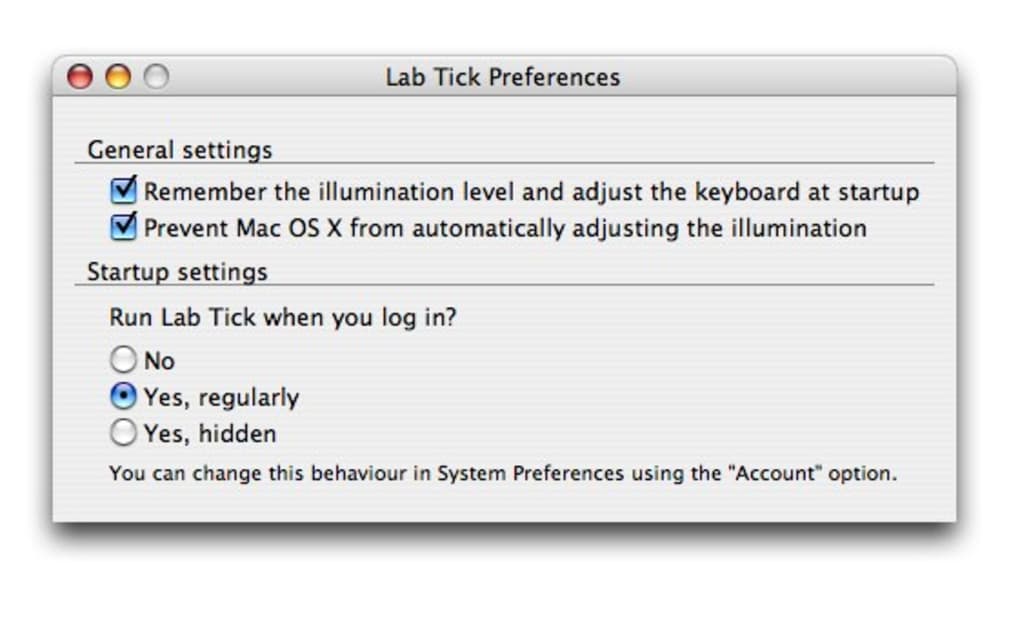
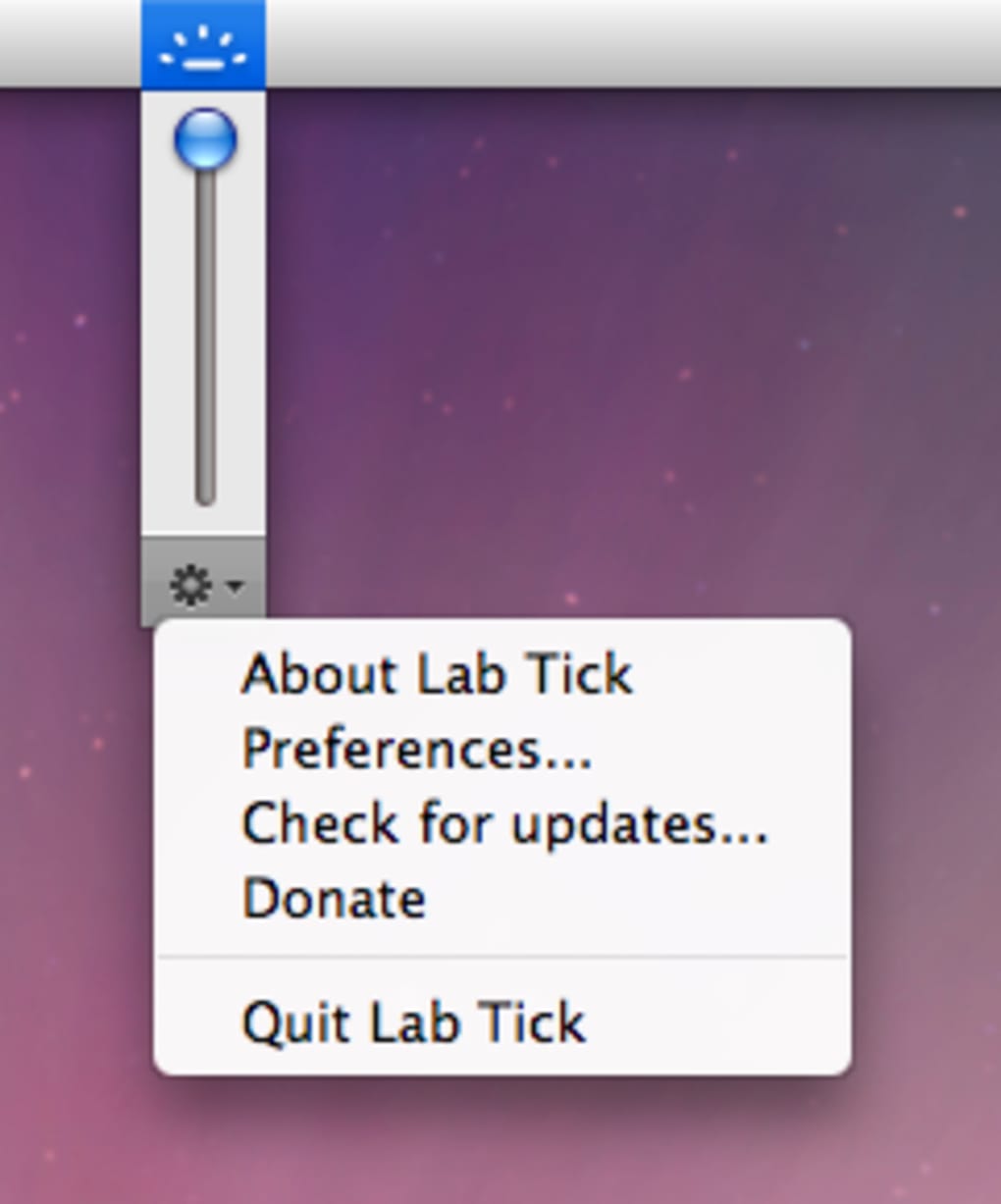
After the copy finishes, launch the app. The first run will ask for permission to control your keyboard back‑light; grant access in the Security & Privacy pane if prompted. Lab Tick then adds a discreet icon to the menu bar, where you’ll find a slider for immediate brightness changes, as well as a dropdown menu for preset selections and automatic dimming controls.
The utility is fully compatible with Mac OS X 10.3 (Panther) through 10.6 (Snow Leopard). While the software was originally built for these versions, it continues to work on later releases such as macOS 10.7 (Lion) and 10.8 (Mountain Lion) due to its reliance on legacy APIs that remain functional. Users on the newest macOS releases may experience minor visual quirks, but core functionality—adjusting keyboard brightness—remains intact. Lab Tick also respects system power‑saving settings; when your Mac enters sleep mode, the program automatically restores the last used brightness level upon wake‑up.
Pros:
- Zero cost and no ads.
- Instant access via the menu bar.
- Extremely low memory and CPU footprint.
- Works on a wide range of older Mac models.
- Simple, no‑frills interface that’s easy to learn.
Cons:
- English‑only UI may limit non‑English speakers.
- No native support for macOS versions newer than 10.8 (though basic features still function).
- Lacks advanced scheduling or integration with third‑party automation tools.
To get the most out of Lab Tick, experiment with the preset levels and enable automatic dimming during long writing sessions. The app remembers your last setting, so you’ll never have to readjust after a reboot. For power‑savvy users, pairing Lab Tick with macOS’s Energy Saver preferences can stretch battery life by an additional 5‑10 %, especially on older MacBooks with aging batteries.
Conclusion, FAQ & Call‑to‑Action
Lab Tick remains one of the most practical free utilities for anyone who values control over their Mac’s keyboard illumination. Its straightforward design, tiny installation size, and reliable performance make it a timeless addition to any Mac toolbox. Even though the last official update was in 2009, the program’s core functionality is still relevant—especially for users of legacy hardware that Apple no longer supports with native brightness controls. If you’re looking for a secure, free solution that lets you dim your keys on demand, Lab Tick is worth the download. Click the button below to grab the latest version, install it in seconds, and start customizing your typing environment today.
Frequently Asked Questions
Does Lab Tick work on macOS Catalina or later?
While Lab Tick was built for Mac OS X 10.3‑10.6, the basic brightness‑control features still function on macOS Catalina (10.15) and later because they rely on legacy system calls that remain operational. However, some UI elements may appear outdated.
Is Lab Tick safe to download?
Yes. The application is open‑source, free of malware, and has been reviewed by the Mac community for years. Always download from a reputable source or the original developer’s site.
Can I set automatic dimming based on inactivity?
Absolutely. Lab Tick includes an “Automatic Dim” option that reduces keyboard back‑light after a configurable period of idle time, helping to conserve battery life.
Do I need admin rights to install Lab Tick?
Installation to the /Applications folder typically requires admin credentials. However, you can also run Lab Tick from your user’s Applications folder without elevated privileges.
Will Lab Tick interfere with other keyboard utilities?
Lab Tick is designed to be lightweight and runs independently of other keyboard‑related apps. In rare cases, two utilities trying to control the same hardware may conflict; disabling one of them resolves the issue.







